
This article was originally written in portuguese and pusblished on the RBZ Digital’s blog, a brazilian WordPress and SEO software house. Don’t miss out their latest updates.
Managing typography on a WordPress website used to be a choice between a third-party plugin or direct addition through code. However, the new version introduced native font management, making the CMS less dependent on plugins and facilitating font editing and selection for themes.In this tutorial, besides learning how to install Google Fonts on WordPress, we briefly discuss three approaches so you can understand which one may meet your needs. But for that, we need to talk a little about typography use on a website.
Third-party resources’ impact
In most cases, fonts are provided by the computer’s operating system, which supports a standard fonts list to ensure compatibility with various types of web resources and services. To use custom fonts, the user will need to download a file from a fonts library, such as Google or Adobe Fonts.The same is valid for web servers, which are computers serving files remotely. The difference here is that the web server can serve the fonts stored inside itself to other users (a.k.a. clients). But, in most cases, web designers and admins tend to import those fonts through a CDN link, eliminating the necessity for downloading any font. This approach’s problem is that when accessing your page, the client will also need to make requests to the fonts libraries, delaying the page load and causing layout shifts, which lowers the website’s score on performance meters and ranking mechanisms, not to mention the visual impact for the client accessing a particular page. To avoid this problem on your site, we will teach you how to install Google fonts locally on WordPress without the aid of plugins or programming knowledge. For this tutorial, we will use a WordPress installation with the settings listed below. Keep in mind that this tutorial applies to version 6.5.2 or higher. Versions prior to these do not have the font management functionality by default.
- WordPress: v6.5.2
- PHP: v8.1.23
- MySQL: v8.0.16
- Tema: Twenty Twenty-Four v1.1
Add Google Fonts with the default font manager
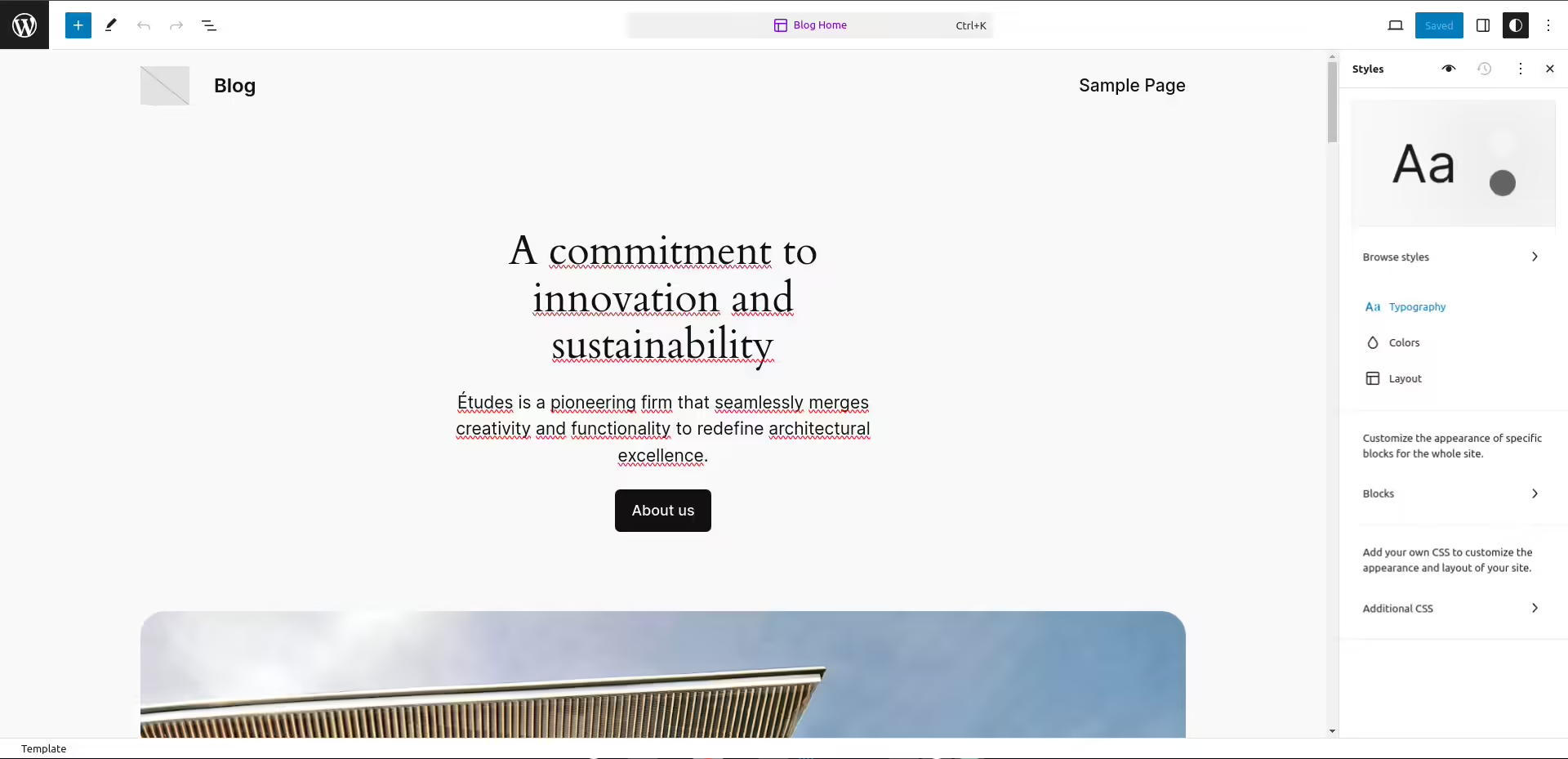
The font manager built into WordPress 6.5 makes it unnecessary to use other plugins to host and download Google fonts directly from your administrative panel. With just a few clicks, you can have as many font families as you want on your site. Open the site editor at Appearance > Editor. In it, click on any template and then click on the Styles button in the top right corner of the panel.
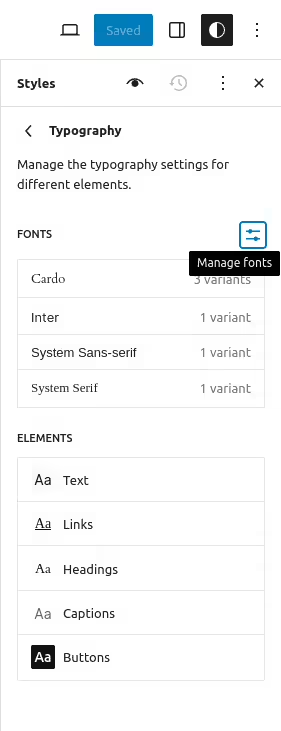
Select the Typography option to start managing the fonts of your site and then click on the Manage fonts icon, as shown in the image below.
By doing this, you will see the font manager popup installed on your site. Go to the Install Fonts tab to start interacting with Google fonts.
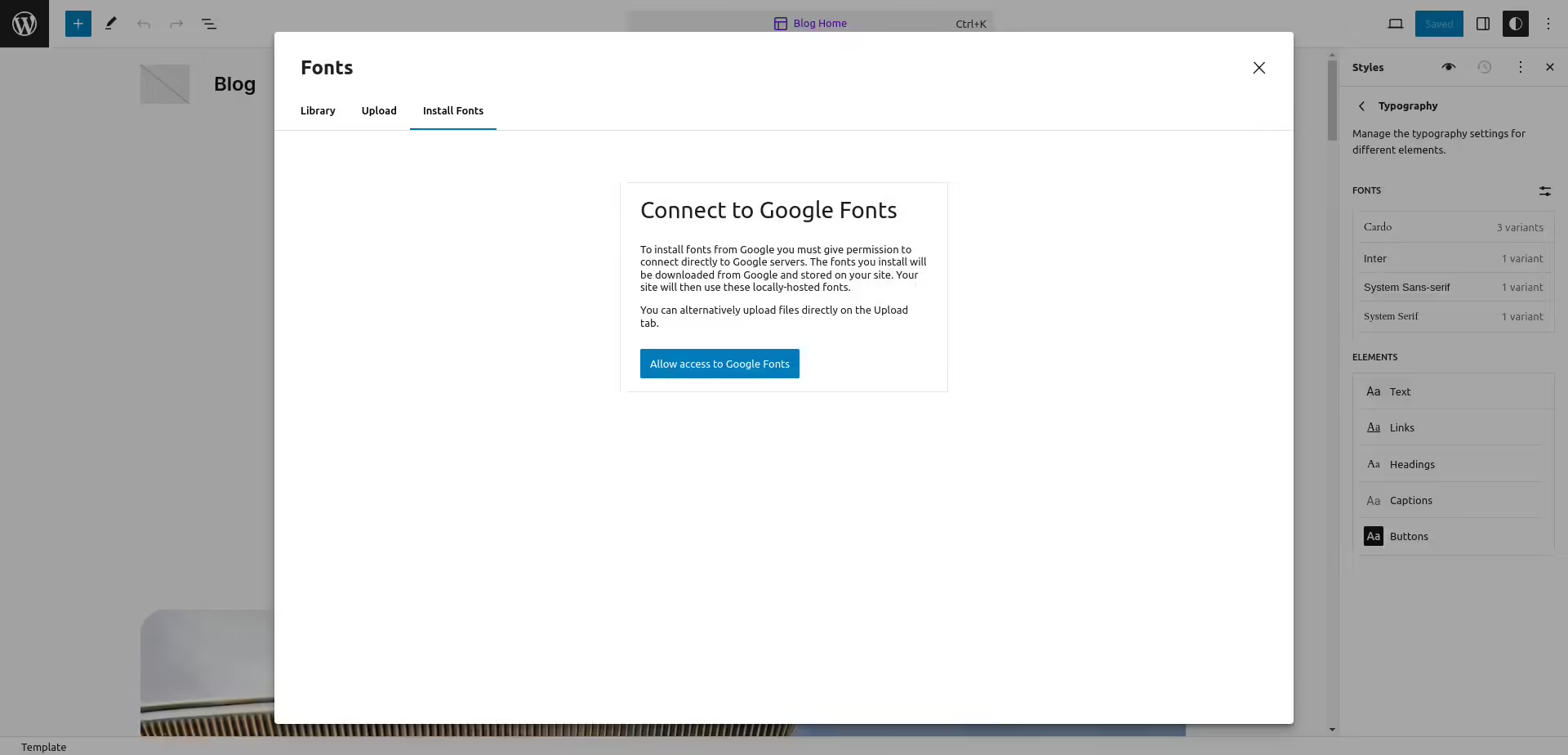
Click on Allow Access to Google Fonts to start using the library.
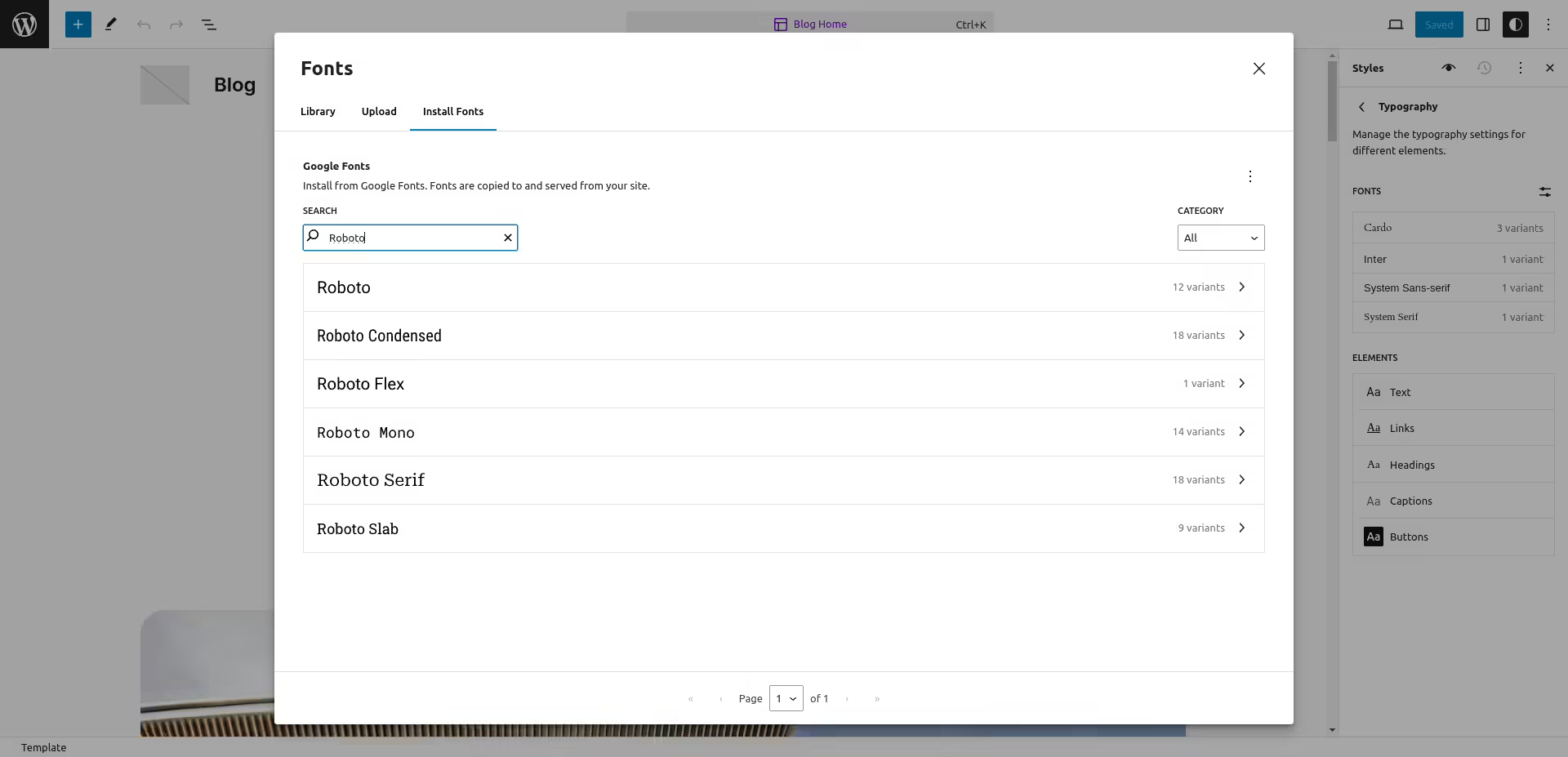
With access granted, search for the font you want to use. For this tutorial, we will install the Roboto font family.
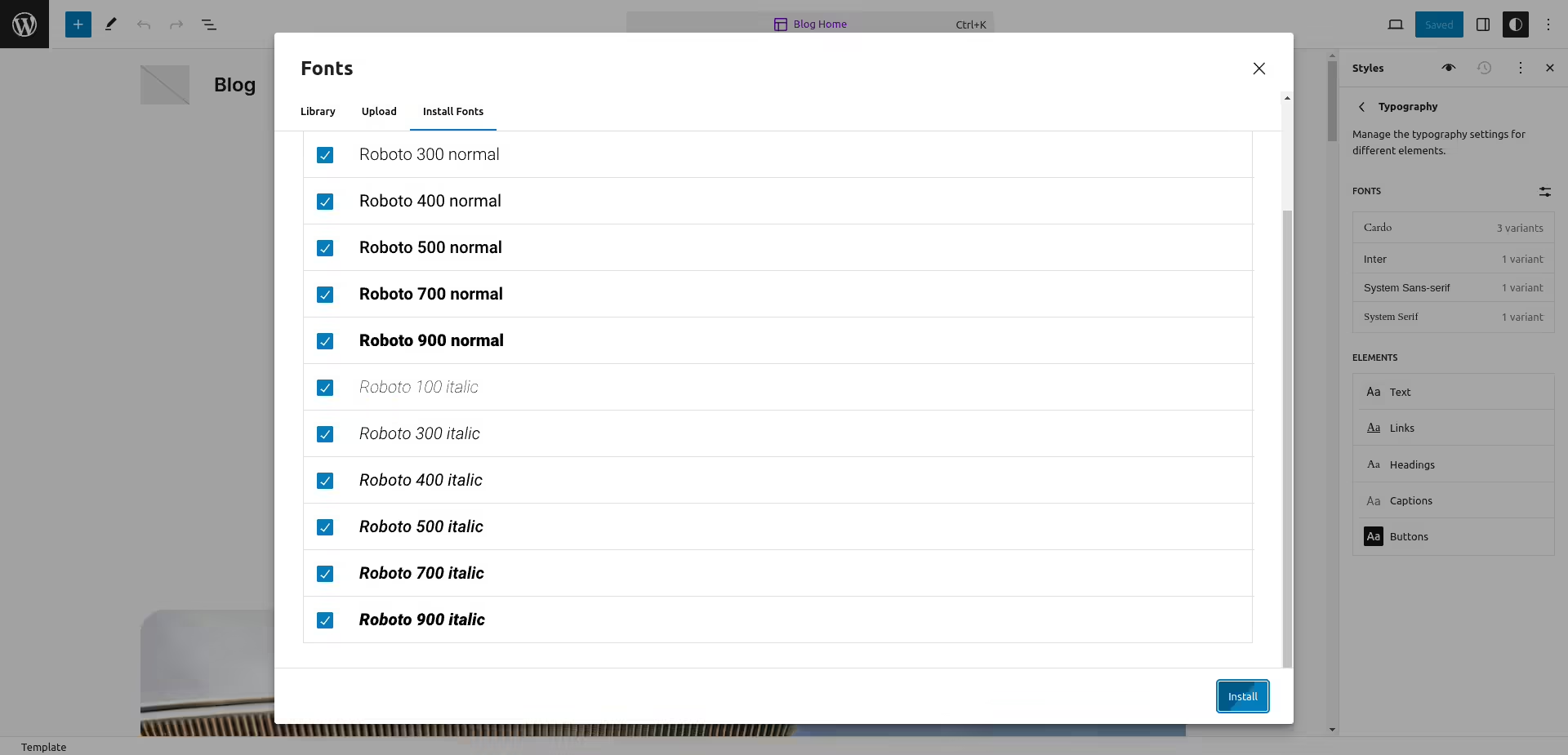
Select the font variations you want to download and click on Install
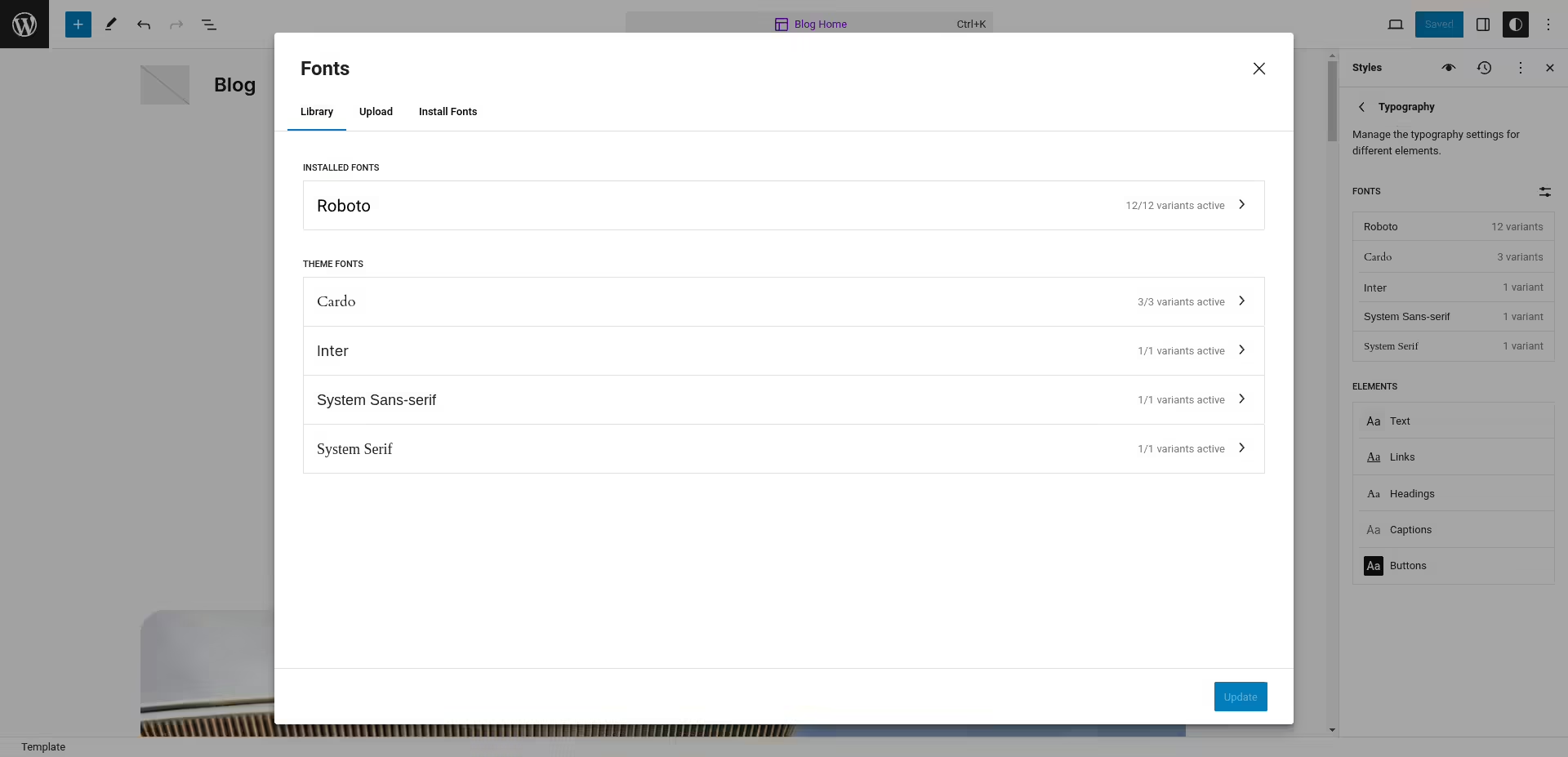
Now that you have your new font family installed, you can simply use it in the template directly through the block editor. This way, you are not required to customize the fonts of your site by code or by altering your theme’s block.json.
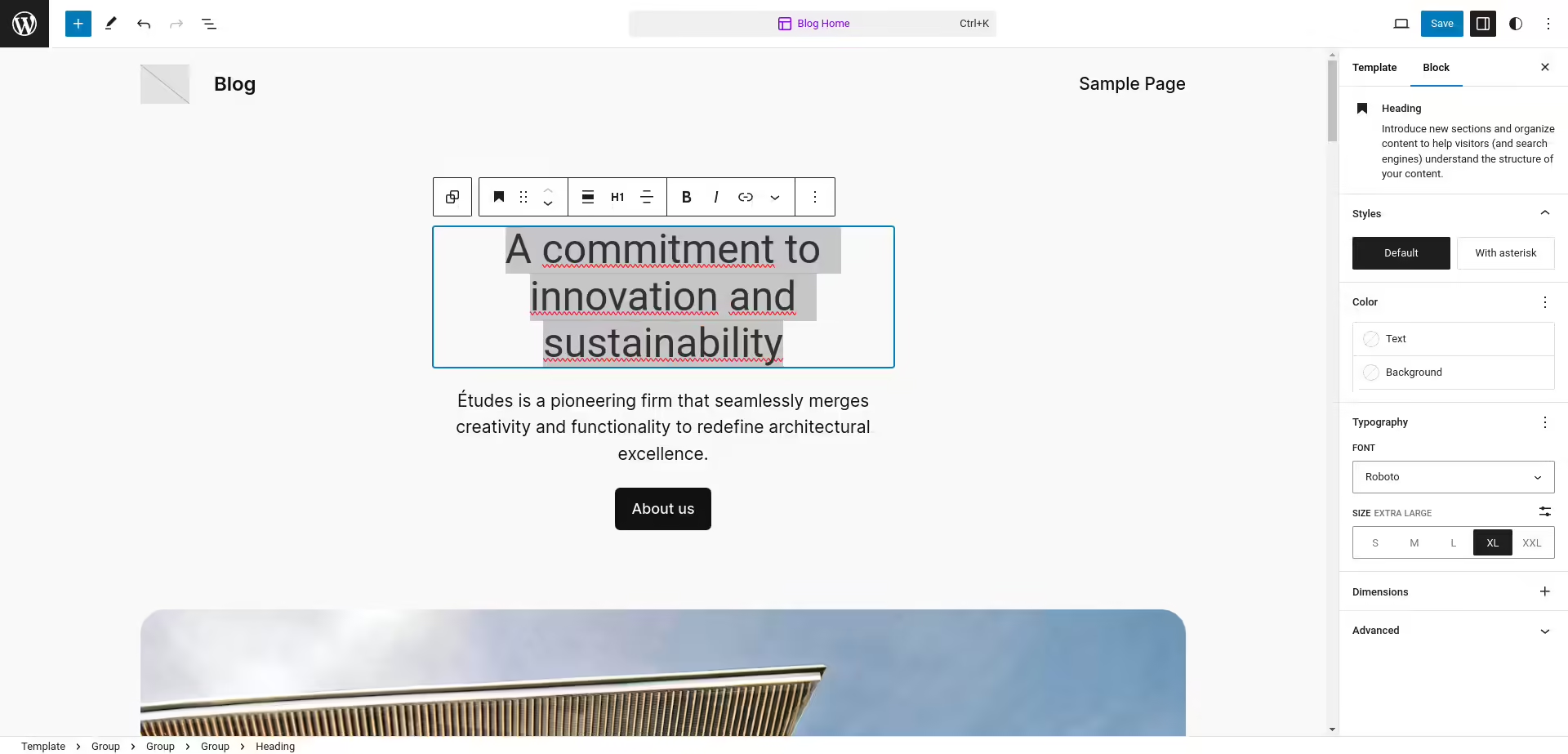
All done! The setup is ready and working. If you want to configure the default fonts for paragraphs, headers, links, etc., just select the font family under Styles > Typography.
Third-party Alternatives
If you don’t have the option to use WordPress 6.5, there are several plugins in the official repository to help you to install Google Fonts on WordPress. A quick search for “Google Fonts” on the plugin installation page will return several alternatives, with the main ones being:
- Fonts Plugin – Google Fonts Typography: Provides a library of custom fonts from Adobe, but requires an API key and other configurations to deliver satisfactory results. You will likely still need to resort to PHP to use the fonts as desired.
- OMGF – GDPR/DSGVO Compliant Faster Google Fonts Easy: This plugin helps make your site compliant with GDPR (in fact, this is the reason for the new version to include native font management, according to the official page). It does this by detecting fonts brought to the frontend via CSS or HTML tags and importing them locally to your site. Be sure to register the fonts through a custom plugin to prevent OMGF from malfunctioning if you change themes and need to import the fonts by code again.
- Local Google Fonts: Essentially doing the same thing as OMGF, but in a simpler way. Yes, you will still need to import the fonts in the traditional way.
Honestly, there are better ways to host fonts locally in WordPress without the need for these plugins – if you have specific knowledge in software development focused on the CMS. Otherwise, seek out a specialized professional to help you with this.
Conclusion
The addition of native font management in the new update is more than welcome. It marks a giant step towards making the system more accessible for developers and web designers, a great achievement for the WordPress community. Now, the use of custom fonts has become much more intuitive and practical, allowing you to avoid third-party solutions, both free and paid, reducing the complexity and vulnerabilities of the system.